Update a Shot
During production, the frame range of a shot may change—either adjusting the shot's length or its position in the edit. Once adjusted, you can update the shot's .blend file frame range so new playblasts will match the updated frame range. After a new playblast is available, the shot can be automatically updated in the VSE via the Blender Kitsu Add-On.
Push Frame Range from Edit
- Open your edit .blend file by navigating to
Project > Open Edit.
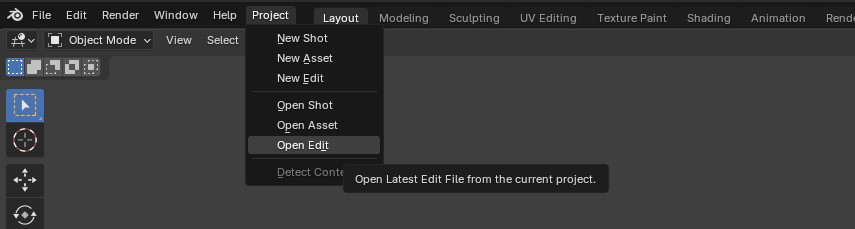
- Select a shot and its Metadata Strip. Adjust the timing of both strips so they remain in sync.
- Select your Metadata Strip. In the Kitsu Sidebar of the VSE, under Push, select
Metadata 1 Shotto push your shot's new frame range to the Kitsu Server.

Pull Frame Range into Shot
- Open your shot .blend file by navigating to
Project > Open Shot.

- Inside the Kitsu Sidebar, under Playblast tools, if your frame range on Kitsu has changed, you will see a red
Pull Frame Rangebutton. Select it to update the file's frame range.
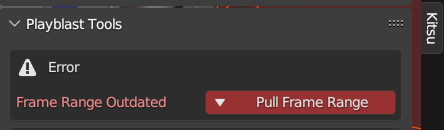
- Adjust the shot's animation to accommodate the new frame range. Then, under Playblast, use the
+button to create a new version, and selectCreate Playblastto render a new playblast.

Update Playblast in Edit
- Open your edit .blend file and select the movie strip for the shot you would like to update.
- In the Kitsu Sidebar, under General Tools, select
^to automatically load the next playblast from that shot.
